Updating a Modded Nintendo Switch: Firmware 17.0.1 to 23.0.1, Atmosphère Crashes and Homebrew Troubleshooting
With Christmas and the holidays approaching, I started thinking about the Nintendo Switch I barely use anymore. Rather than spending the break endlessly scrolling through my phone, I wanted to pick up a dedicated gaming device again, revisit some older games and see what else my modded Switch could do. It seemed like a good excuse to bring it back to life instead of leaving it in a drawer.
There was one catch: the Switch was still on firmware 17.0.1, running Atmosphère 1.6.2 and Hekate 6.1.0. I brought the system firmware up to 23.0.1 and refreshed the custom firmware components. What followed was not a clean, one-click upgrade: first there were game-launch problems, then an Atmosphère boot crash while experimenting with homebrew, and finally successful Jellyfin music and video tests. The GameCube problem turned out to be a file-format mismatch with the version of Tico I was using.
This is a troubleshooting diary rather than a step-by-step upgrade tutorial. It follows the errors I saw, the changes I tried and the fixes that worked.

Version history: original firmware and custom firmware compared with the upgraded versions.
Starting point: a big firmware jump
My Switch went from:
| Component | Before | After / observed |
|---|---|---|
| Nintendo Switch system firmware | 17.0.1 | 23.0.1 |
| Atmosphère | 1.6.2 (AMS 1.6.2 E, shown in the original System Settings screenshot) | 1.12.1 |
| Hekate | 6.1.0 | Downloaded an updated release; new version not recorded |
| Patches | Previous versions not recorded | Downloaded updated patches; source and precise set not recorded |
| SD card management | — | Fedora Linux |
| Hekate IPL launch configuration | Custom emuMMC entry | Existing bootloader/hekate_ipl.ini retained for Launch menu |
The original System Settings photo displayed 17.0.1 | AMS 1.6.2 E, confirming both the system firmware and custom firmware versions before the upgrade. The post-update photo displayed 23.0.1 | AMS 1.12.1 E. The E suffix indicates the emuMMC environment. The comparison image above is cropped to the relevant part of each screen and contains no embedded EXIF or GPS metadata.
Getting back into the Switch: RCM and payload injection on Fedora
The first hurdle was simply getting the modded Switch booted again. It had been sitting unused for a long time, and I needed to get back into Hekate before dealing with the larger firmware upgrade. I connected the console to my Fedora machine in RCM (Recovery Mode) over USB.
I first used lsusb in a Fedora terminal to check that the USB connection was actually detecting the console in RCM:
lsusb
The relevant device appeared as:
0955:7321 NVIDIA Corp. Switch [Tegra Erista] recovery mode
The console was presenting itself in RCM, even though it wasn’t showing a normal boot screen.
First attempt: fusee-launcher and a newer Hekate payload
I tried the Linux Python-based fusee-launcher. The dependencies and checkout used in the investigation were:
sudo dnf install git python3 python3-pyusb libusb1
git clone https://github.com/soup6020/fusee-launcher.git
One of the attempted injection commands was:
sudo python3 fusee-launcher.py hekate_ctcaer_6.5.4.bin
That newer Hekate payload did not get me to a usable menu: the screen stayed black. The screen gave no clue whether the problem was the payload, the injection method or the existing SD-card configuration.
Finding the existing payload instead of guessing
I then examined the payload.bin already associated with the setup. Inspecting its embedded text revealed identifiers including:
*-2023, CTCaer
Spec Version
Those strings pointed to an older Hekate payload. Although they did not reveal its exact version, they gave me a useful lead: the old configuration might still depend on that file.
Installing Java 25 and switching to NS-USBloader
Before I could use the Java-based loader, I also downloaded JDK 25 (Java Development Kit 25) on Fedora. This was required to run NS-USBloader, not to update the Switch firmware. My notes only include the command used to check the active Java runtime:
java -version
I then used NS-USBloader 7.3 to inject the existing payload.bin, rather than the newer payload that had produced a black screen. One attempt through the graphical interface simply reported Failed:
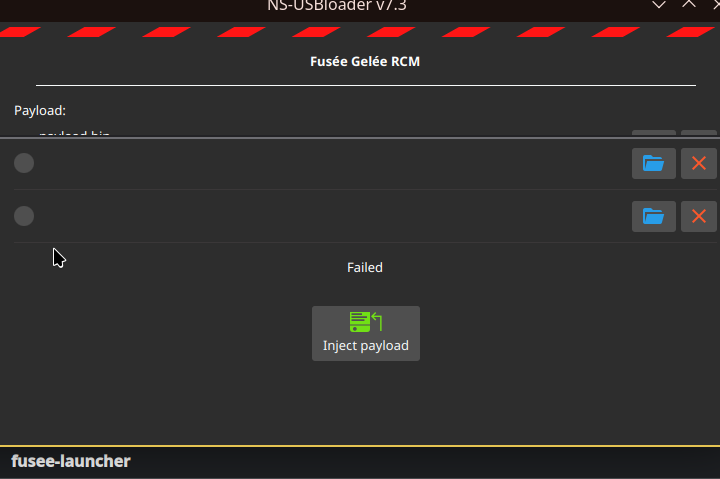
A failed attempt in the NS-USBloader interface. The terminal command below was the combination that worked for me.
The working command from my Fedora session was:
sudo java -jar ~/Downloads/ns-usbloader-7.3.jar \
  --rcm ~/switch/fusee-launcher/payload.bin
This got the console back into Hekate. The existing payload through NS-USBloader was the combination that worked with my Switch.
The existing payload restored access first; the updated Hekate files came later as part of the upgrade.
Keeping my Hekate launch button and emuMMC configuration
One small file was particularly important when replacing the Hekate files: bootloader/hekate_ipl.ini. I needed to keep my existing IPL configuration so that my custom launch button would still appear in Hekate, show the emuMMC option and let me boot into the environment I was already using. Simply copying across the new bootloader files without preserving the configuration could have left me with Hekate itself working, but without my familiar launch entry.
Despite the name IPL, this is an .ini file, not a .ipl file. Hekate reads entries in bootloader/hekate_ipl.ini for its Launch menu; separate configurations under bootloader/ini/ appear in More configs. Before replacing the bootloader folder, I kept a backup of the existing configuration and made sure it was present afterwards:
bootloader/
├── hekate_ipl.ini       # Main Launch menu and custom boot entries
└── ini/                 # Optional entries shown under More configs
On Fedora, I preserved it before copying in new Hekate files with:
SD="/path/to/mounted-switch-sd"
mkdir -p "$HOME/switch-config-backup"
cp "$SD/bootloader/hekate_ipl.ini" "$HOME/switch-config-backup/"
If the update replaces the file, compare the old and new versions and restore or merge the working launch entry rather than blindly overwriting a newer configuration. I checked the result on the console: Hekate → Launch → my emuMMC entry → boots successfully. The E indicator in System Settings confirmed the emuMMC environment.
I did not record the exact contents or label of the custom launch entry. The practical lesson is to retain hekate_ipl.ini and check the emuMMC launch path before troubleshooting Atmosphère itself.
Researching the update: YouTube, HATS and patches
Because this was a jump across several firmware generations, I watched YouTube videos before proceeding rather than relying on my memory of an older Switch setup. These included videos from dammitjeff, as well as “Latest HATS Pack for Firmware 23.0.1 with Hekatos 6.5.4 & Atmosphere 1.12.1!!!”. The latter matched my target firmware and Atmosphère versions.
The upgrade involved several parts of the modded environment:
- Hekate: the bootloader used to access and boot the configuration.
- Atmosphère: the custom firmware that had been running at version 1.6.2 before the upgrade.
- Patches: additional files used by the existing setup. Their version and compatibility matter when updating firmware and custom firmware.
- HATS: a package that groups Hekate, Atmosphère and associated components, referenced by the linked video.
I downloaded updated Hekate, Atmosphère and patches during the upgrade and used Fedora to manage the microSD card. My notes do not include the patch archive or final Hekate version. The video title mentions Hekate 6.5.4, but I did not record whether that was the version that ultimately booted.
The update patches were part of the initial preparation. Later, after the startup crash, I inspected the existing folders under atmosphere/exefs_patches/ as a separate troubleshooting step.
I did not photograph every installation screen, so the story continues with my post-update tests.
Updating the console firmware and custom firmware components does not automatically make every older homebrew sysmodule or patch compatible. I copied the important SD-card configuration and recorded the component versions before making changes.
Early testing: one game failed while another worked
Before I started investigating music streaming, I had an issue launching Vampire Survivors. It wouldn’t load, while Super Smash Bros. did launch. Initially, the failure appeared to be specific to Vampire Survivors rather than a general inability to run games.
Later update: I installed Vampire Survivors again and it worked. That resolves the original game-launch symptom in practice, although I didn’t capture a specific error code or identify whether the earlier issue was a bad installation, incompatible files or something else. It was a separate symptom, not the later Atmosphère fatal error.
Adding Streamfin: Atmosphère stopped reaching HOME
After the upgrade and the earlier game testing, I tried Streamfin v1.1.0, a homebrew overlay intended to interact with a Jellyfin music library.
This is where the more serious problem began. After adding its files, Atmosphère failed during startup and showed:
Error Code: 2021-0003 (0x615)
Program:    0100000000000023
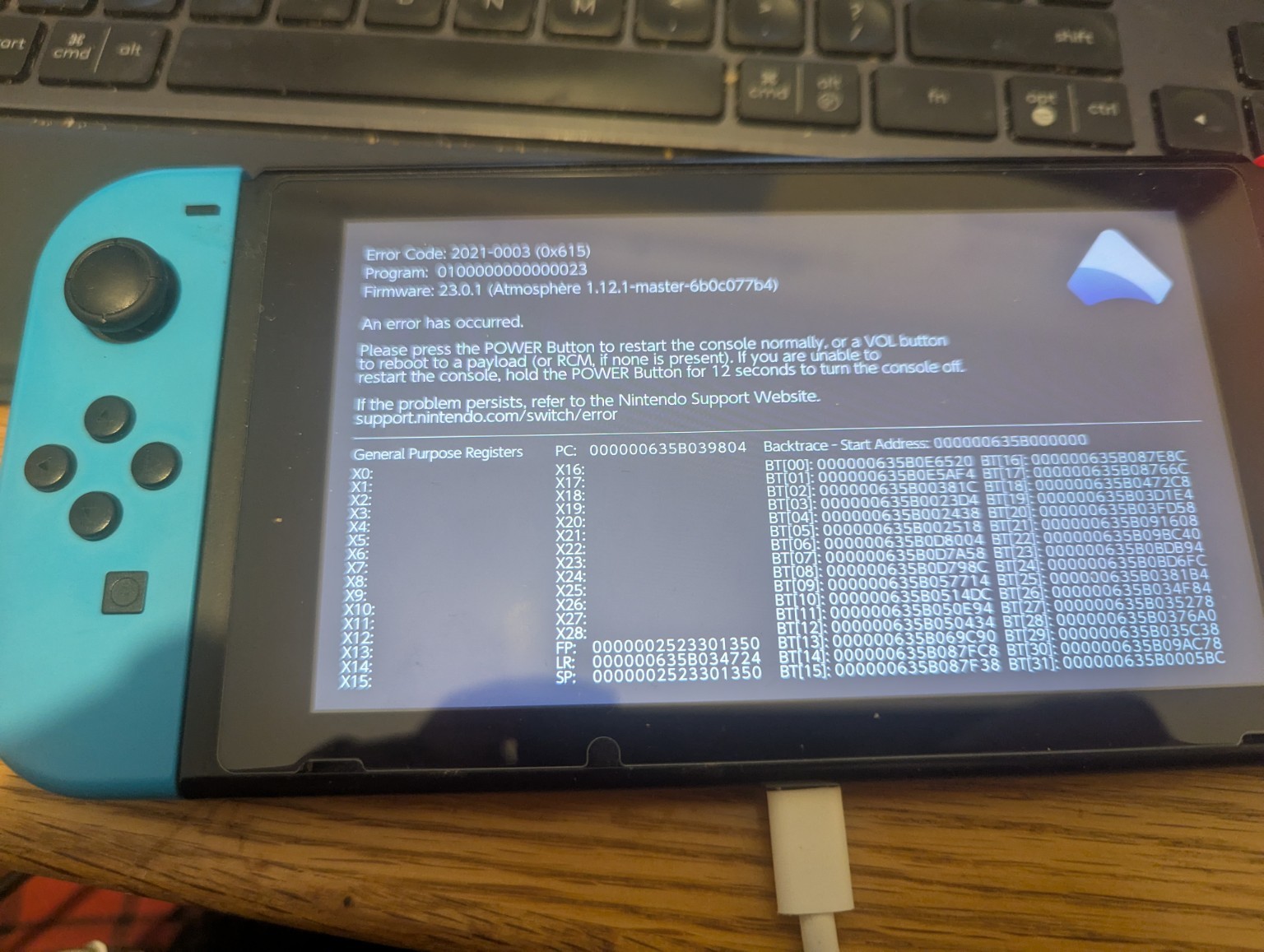
The crash screen after the firmware update and homebrew changes.
The program ID belongs to the Switch’s Application Manager, while the specific third-party file responsible still had to be found.
Rather than immediately reinstalling the entire card, I looked at two important directories:
/atmosphere/exefs_patches/
/atmosphere/contents/
Checking patches first
The patch folder contained several existing patch sets, including Bluetooth-related patches, NXThemesInstaller and SaltyNX fixes. A common suggestion was to check for an am patch folder, but there wasn’t one in my setup, so removing an am folder was not a relevant fix for this case.
Finding the suspect content folder
From Fedora I listed the contents folder. The commands below use a placeholder path, not my real Linux username or mount point:
SD="/path/to/mounted-switch-sd"
ls -lah "$SD/atmosphere/contents/"
One newly added title-ID directory stood out:
420000000046494E
Removing that directory from atmosphere/contents let Atmosphère reach the HOME screen again. That is the clearest confirmed recovery in this investigation.
For anyone reproducing the investigation, back up rather than delete a suspect directory. For example, only if you have identified this exact folder in your own installation:
SD="/path/to/mounted-switch-sd"
mkdir -p "$HOME/switch-module-backups"

mv "$SD/atmosphere/contents/420000000046494E" \
   "$HOME/switch-module-backups/"
Do not blindly remove other title-ID directories. They may belong to completely different system modifications.
The next error: Streamfin’s overlay opened, but its module failed
With Atmosphère booting again, Streamfin was visible through Ultrahand. But it now displayed:
Failed to launch sysmodule
2008-0005
This mattered because the overlay UI and its background sysmodule are not the same thing. Opening an overlay successfully doesn’t necessarily mean the underlying audio service has started.
I had also installed sys-tune before Streamfin, which made overlapping audio modules the next thing to investigate.
Removing sys-tune from the homebrew app store did not guarantee that every related Atmosphère file had been cleared. To inspect the still-installed boot modules, I ran:
find "$SD/atmosphere/contents" \
  -maxdepth 3 -type f \
  \( -name "*.nsp" -o -name "*.flag" -o -name "*.ini" \) \
  -print
The sys-tune directory was still present as:
4200000000000000
I moved that directory to a backup location too:
mkdir -p "$HOME/switch-module-backups"

mv "$SD/atmosphere/contents/4200000000000000" \
   "$HOME/switch-module-backups/"
After further testing, the Streamfin overlay loaded and I successfully played music from Jellyfin. Increasing Ultrahand overlay memory from 4 MB to 8 MB also stopped the crashes I had experienced while browsing the Jellyfin artist library. The test did not isolate which earlier change resolved the boot and sysmodule errors.
Ultrahand memory: the 4 MB setting that wouldn’t change
At 4 MB of overlay memory, Streamfin crashed when I browsed my Jellyfin library, particularly while moving through artists. Initially I thought Ultrahand would not let me change the 4 MB value. The trick was simply to press A to select the memory setting, then adjust it to 8 MB.
After increasing the allocation to 8 MB, I could browse Streamfin and the Jellyfin artist library without the earlier crashes. I also played songs successfully. That was a tested improvement, not just a case of the overlay opening.
There was no need to hex-edit files or force the setting manually. Overlay memory and background sysmodule memory are separate settings; 8 MB worked for my configuration.
Watching TV and anime through Jellyfin
Streamfin covers music, but it is not the full Jellyfin video client. I also tried Switchfin, the separate native Jellyfin app for the Switch. It has been great in use: I watched TV programmes and anime from my Jellyfin server on the console, and playback worked well in my testing.
That makes the Switch more useful to me than I expected. It is a handheld for games again and a convenient screen for the media I already keep in Jellyfin. Switchfin is still an early-stage project, so codec and subtitle compatibility may vary.
Retro gaming with Tico: PSP works, and GameCube needs RVZ on the latest release
I also tried Tico for emulation. Persona 3 on PSP launched successfully, so at least the PSP side of the setup was working.
GameCube was a different story. The GameCube system appeared in Tico, but its library showed 0 games, despite these three files being on the microSD card:
/tico/roms/gc/
├── Animal Crossing (USA, Canada).ciso
├── Fire Emblem - Path of Radiance (USA).ciso
└── Luigi's Mansion (USA, Canada).ciso
A directory listing from Fedora confirmed they existed. I also found the Dolphin core file:
/tico/cores/tico-dolphin.nro
I checked for it with:
find "$SD/tico/cores" \
  \( -iname '*dolphin*' -o -iname '*gc*' \)
The explanation was the version I had installed: Tico 0.7.9, the latest public release, showed RVZ files for GameCube, not my CISO files. The folder and Dolphin core were present, but the library scanner did not index those .ciso images. I therefore need to use .rvz files with this setup rather than keep treating the empty library as a missing-core problem.
The Tico wiki currently describes an unreleased 0.8.0 and lists both .rvz and .ciso, with RVZ recommended. That does not match the latest public release or what its scanner showed on my Switch, so I followed the formats displayed by Tico 0.7.9 itself.
Confirmed results versus open questions
| Item | Current result |
|---|---|
| Firmware upgrade | 17.0.1 / AMS 1.6.2 E before; 23.0.1 / Atmosphère 1.12.1 after |
| Hekate Launch menu | Existing IPL configuration retained so the custom emuMMC launch option remained available |
| Vampire Survivors | Working after reinstalling; original failure cause unknown |
| Super Smash Bros. | Launched during the same testing |
Atmosphère crash 2021-0003 |
Boot restored after removing 420000000046494E |
Streamfin error 2008-0005 |
Seen earlier; later overlay browsing and Jellyfin music playback worked |
| sys-tune | Its leftover folder was backed up and removed from active contents |
| Ultrahand overlay memory | Changed from 4 MB to 8 MB with A; artist browsing stopped crashing in testing |
| Streamfin/Jellyfin playback | Verified: songs played successfully |
| Switchfin/Jellyfin video | Verified: TV programmes and anime played successfully |
| Tico PSP / Persona 3 | Working |
| Tico 0.7.9 GameCube scanning | .ciso files were not shown; this version expected .rvz in my setup |
Lessons learned
- Keep
bootloader/hekate_ipl.ini. It contains the custom Hekate Launch entries, including the emuMMC boot option. Back it up before replacing Hekate files. - Write down the starting versions. A jump from 17.0.1 to 23.0.1 involves more than updating one file.
- Keep errors separate. A single game failing, a system boot error and an emulator showing no games are different problems.
- Back up before modifying
atmosphere/contents. A reversible move is better than deleting unknown sysmodules. - App uninstallers may leave background modules behind. Verify what remains on the SD card.
- An overlay loading is not proof its background component works. Test actual functionality before declaring victory.
- Check emulator formats against the installed release. Tico 0.7.9 is the latest public version and showed RVZ for GameCube in my setup; the wiki is already documenting an unreleased 0.8.0.
- Separate observed fixes from suspected causes. The Atmosphère recovery was verified; the precise cause of the Streamfin conflict remains unclear.
What started as a way to spend more of the Christmas break playing games and less time on my phone turned into an unexpectedly technical project. The Switch now boots again, Vampire Survivors works after reinstalling, PSP emulation works and Streamfin plays music from Jellyfin. With the overlay memory set to 8 MB, I could browse Jellyfin artists without crashing. Switchfin has also been great for watching TV programmes and anime. For GameCube, I now know that the CISO files were the wrong fit for the Tico 0.7.9 scanner I was using; RVZ is the format to try next.
References
- Atmosphère
- Hekate
- Streamfin v1.1.0
- Switchfin
- Tico 0.7.9 release
- Tico supported ROM formats — documents the unreleased 0.8.0 rather than the latest public release, 0.7.9
- dammitjeff on YouTube — videos consulted during the project (specific video URLs not captured)
- Latest HATS Pack for Firmware 23.0.1 with Hekatos 6.5.4 & Atmosphere 1.12.1!!! — upgrade reference video